This is an old revision of the document!
Table of Contents
Viewing and Editing Your User Profile
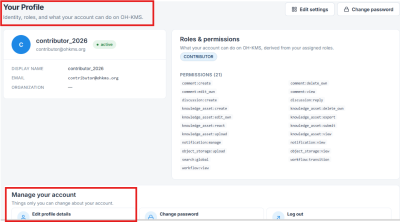
Every authenticated OHKMS user (Contributor, Reviewer, Curator, Knowledge Manager, and Super User) has a personal user profile. The profile contains information associated with your account, including your personal details, contact information, and system role.
Keeping your profile information accurate ensures that other users can identify and contact you when necessary and helps maintain an up-to-date user directory. Many knowledge management systems provide users with a personal profile page where they can view and update their own account information, subject to permissions defined by the system administrator.
View Profile
** Purpose **
The View Profile function allows you to view your personal account information and assigned role(s) within OHKMS. Depending on your permissions, some information may be read-only.
To View Your Profile
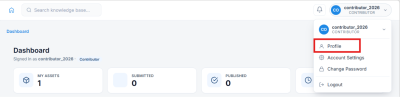
1. Log in to OHKMS using your User ID and Password. 2. Click your Profile icon or username in the navigation bar. 3. Select My Profile from the menu. 4. Your profile page will open and display your account information.
The profile may include information such as:
- Full name - Username - Email address - Organization - Department or Institution - Job title - User role - Contact information - Profile photograph (if enabled) - Date the account was created - Last login date
Note: The information displayed may vary depending on your assigned role and your organization's system configuration.
Edit Profile
Purpose
The Edit Profile function allows authenticated users to update selected personal information associated with their OHKMS account. Certain fields may be editable, while others are managed by the System Administrator and cannot be changed by users. Many enterprise systems allow users to edit contact information while protecting administrator-controlled fields such as usernames and assigned roles.
To Edit Your Profile
1. Log in to OHKMS. 2. Open My Profile. 3. Click Edit Profile. 4. Update the required information. 5. Review your changes for accuracy. 6. Click Save or Update Profile. 7. Wait for the confirmation message indicating that your profile has been successfully updated.
Information You May Be Able to Update
Depending on your permissions, you may be able to edit the following information:
- Full name - Email address - Telephone number - Organization - Department - Job title - Professional biography - Profile photograph - Areas of expertise - Communication preferences
Information You Cannot Edit
For security and administrative reasons, the following information is typically managed by the System Administrator and cannot be modified by users:
- Username (User ID) - Assigned user role - Account status - Date the account was created - System permissions - Access privileges
If any of these details need to be changed, contact your System Administrator or Knowledge Manager.
Best Practices
To maintain an accurate and effective user profile:
- Keep your contact information up to date. - Upload a professional profile photograph, if permitted. - Review your profile information periodically. - Ensure that your email address is current so you can receive system notifications. - Do not share your login credentials with other users.
Troubleshooting
| Problem | Possible Solution |
|---|---|
| Unable to edit profile | Verify that you are logged in and have permission to edit your profile. |
| Changes are not saved | Ensure all mandatory fields have been completed before saving. |
| Incorrect information cannot be edited | Contact the System Administrator if the field is administrator-controlled. |
| Profile photo will not upload | Verify that the image is in a supported format and within the maximum file size limit. |
| Error message appears when saving | Refresh the page and try again. If the problem persists, contact technical support. |
Profile step 2