
This is an old revision of the document!
Table of Contents
Email Notifications
Purpose
The Email Notifications feature in the One Health Knowledge Management System (OHKMS) enables users to receive important system alerts, updates, and account-related information. It facilitates timely communication between the system and its users, ensuring that they remain informed about relevant activities and notifications.
Overview
The Email Notifications page allows users to view and review email alerts generated by the system. It provides access to notification history, helping users stay informed about important updates and system activities.
Email notifications may also contain account access information, including login instructions and a temporary password for first-time users.
Procedure
**Step 1: Access Email Notifications**
1. Open the email account registered with OHKMS. 2. Locate and open the notification email sent by the system. 3. Review the message and any instructions provided. 4. Follow the relevant link or instructions to access OHKMS.
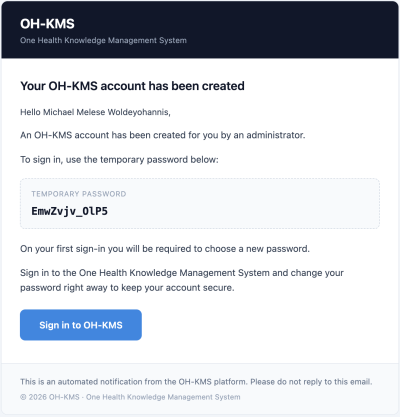
Figure: OHKMS Email Notification.
**Step 2: Sign In to OHKMS for the First Time**
When a new user account is created, the system may send an email containing a temporary password and instructions for accessing OHKMS.
1. Open the email notification received from OHKMS. 2. Locate the Sign in to OH-KMS link. 3. Click the link to open the OHKMS login page. 4. Enter your registered email address and the temporary password provided in the notification. 5. Click Sign In to access the system. 6. Change your temporary password to a secure personal password when prompted.
Note: First-time users should change their temporary passwords immediately to protect their accounts and prevent unauthorized access.
Expected Result: The user successfully signs in to OHKMS and establishes a personal password for subsequent logins.
**Step 3: Review Email Notification History**
1. Log in to OHKMS using your registered credentials. 2. Navigate to the Email Notifications page. 3. Browse the list of available notifications. 4. Select a notification to review its details, where supported. 5. Use the available navigation options to locate earlier notifications.
Expected Result: The user can review previous email notifications and remain informed about relevant system activities.
**Troubleshooting**
| Issue | Recommended Action |
|---|---|
| Email notification not received | Check your spam or junk folder and verify your registered email address. |
| Sign-in link does not work | Access OHKMS through its official website or contact the system administrator. |
| Temporary password is not accepted | Verify the credentials or request assistance from the administrator. |
| Unable to change password | Follow the password requirements or contact the administrator. |
| Notifications are not displayed | Refresh the page or verify your account permissions. |
**Important Notes**
- Always use your registered email address to access OHKMS. - Change your temporary password immediately after your first successful login. - Do not share your password or account credentials with others. - Review email notifications regularly to stay informed about important system updates. - If you receive an unexpected email requesting your credentials, verify its authenticity before following any links.
**Expected Result**
Users can receive and review system-generated email notifications, access their notification history, and use the initial account notification to sign in securely to OHKMS.
Suggested next step: The related Changing Your Password section could explain how first-time users replace their temporary passwords and manage their login credentials.
The Email Notifications page allows you to manage and review all email alerts sent by the system. From this page, you can stay informed about important updates and easily navigate through your notification history.

Once you received email notification, you can login to the system by clicking the Sign in to OH-KMS employing the given temporary password assigned to you for the first time login and change password.
