Table of Contents
Viewing Search Results
Purpose
The Search Results page displays all knowledge assets that match the search criteria entered by the user.
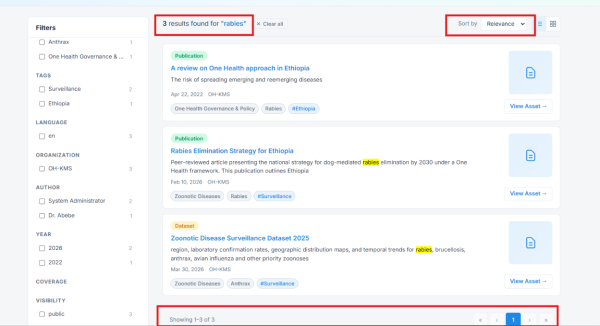
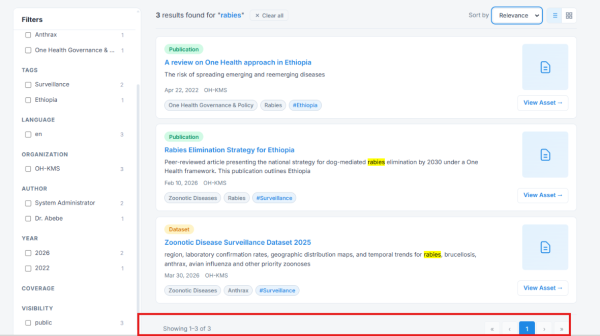
Each result provides summary information to help users determine whether the knowledge asset is relevant before opening it.
Understanding Search Results
After performing a search, OHKMS displays a list of matching knowledge assets.
Each search result may display:
- Title
- Knowledge Asset Type
- Author
- Knowledge Domain
- Publication Date
- Summary or Abstract
- Keywords
- Category
- Availability status
Depending on the system configuration, results may also display file type icons, download availability, or relevance indicators.
Opening a Search Result
To view additional information:
- Locate the desired search result.
- Click the title of the knowledge asset.
- The Knowledge Asset Details page opens.
- Review the complete resource information.
- Download attached files if required.
Sorting Search Results
Depending on system configuration, users may sort search results by:
- Relevance
- Title
- Most Recently Updated
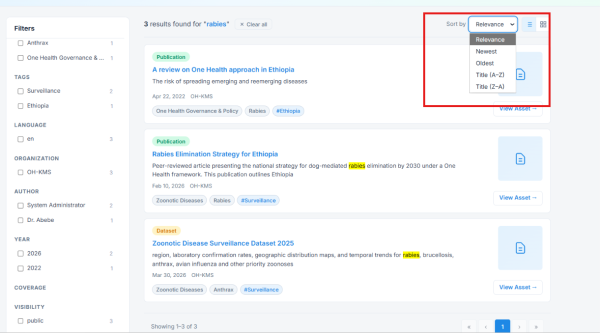
Sorting helps users quickly locate the most useful knowledge assets for their needs.
No Search Results Found
If your search returns no results:
- Verify the spelling of search terms.
- Use fewer or broader keywords.
- Remove one or more filters.
- Search using synonyms or alternative terminology.
- Browse the knowledge asset categories instead.
- Confirm that the resource has been published and that you have permission to access it.
Best Practices
When reviewing search results:
- Read the summary before opening a document.
- Check the publication date to ensure the information is current.
- Review the author and knowledge domain for relevance.
- Use filters to narrow large result sets.
- Open related knowledge assets to gain additional context.