Table of Contents
Contributing Knowledge
Purpose
This feature allows authorized users to contribute new knowledge resources to the repository.
Create New Knowledge Resource
To create a knowledge resource in OHKMS, you need to first
- login to the system as a knowledge Contributor.
- Select Knowledge Repository from the navigation menu.
- Click New Resource.
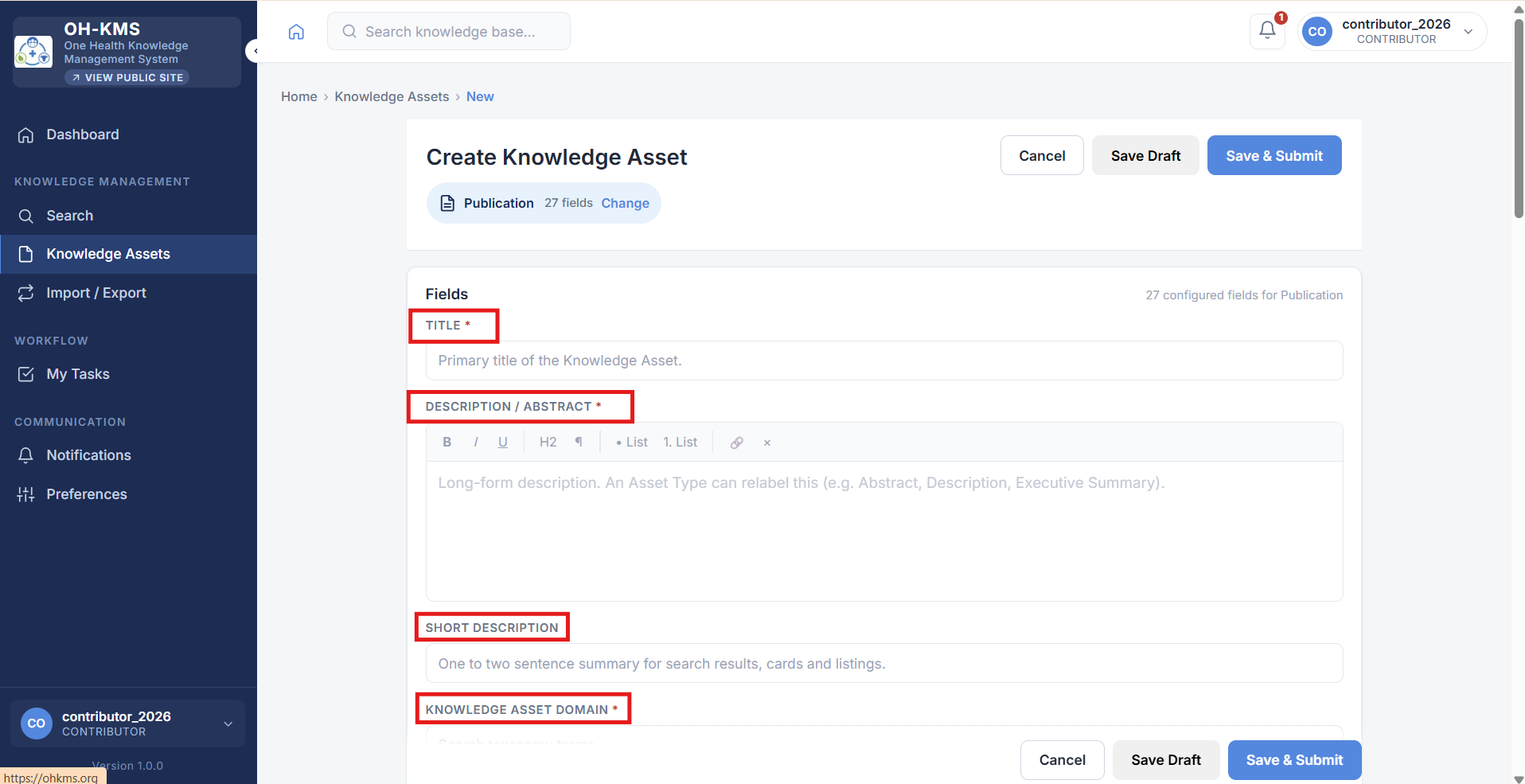
- Complete the required fields
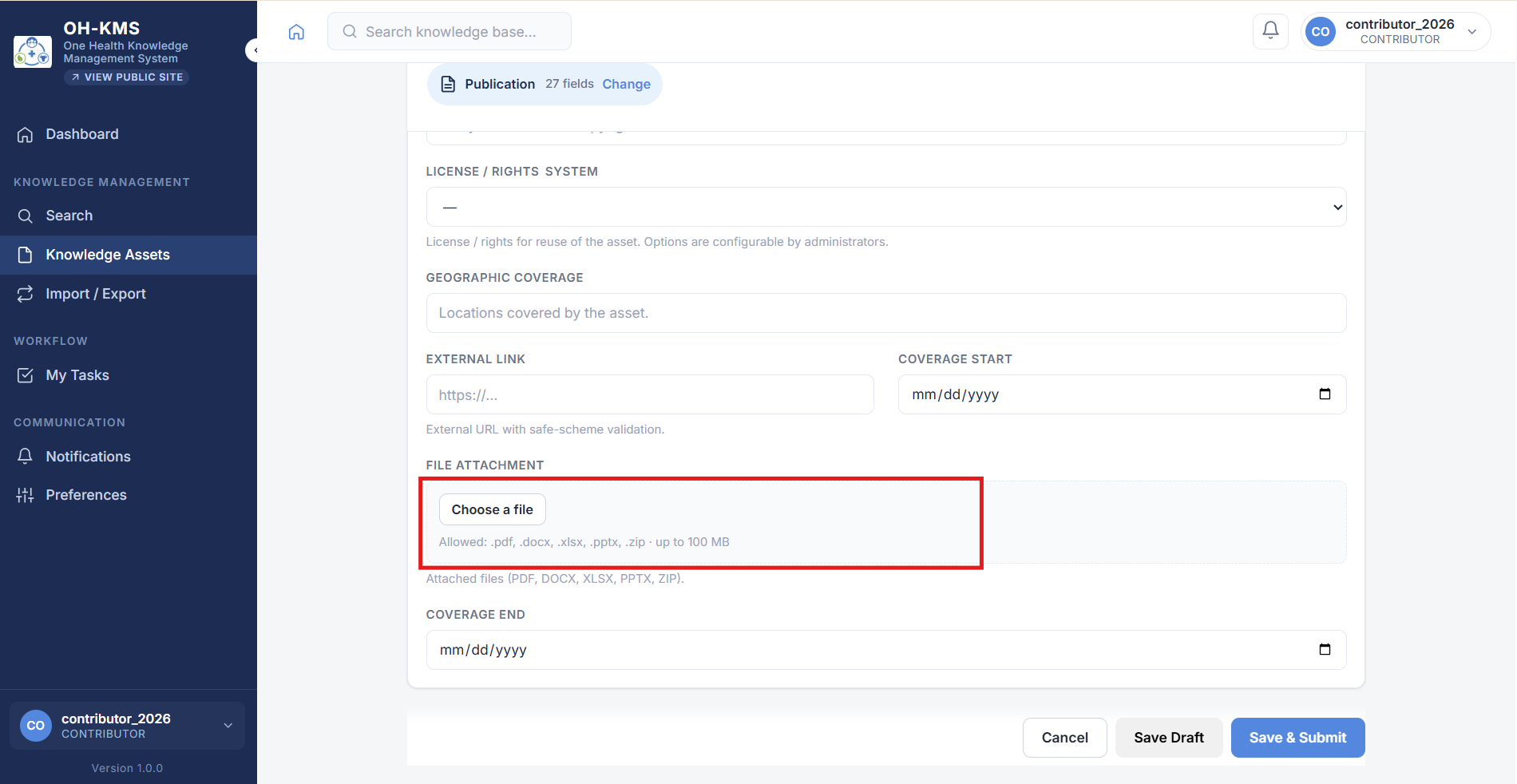
- Upload supporting files if applicable.
- Click Save Draft or Submit for Review.
Tip: Use descriptive titles and include relevant keywords to improve discoverability.
Expected Result
The resource is saved and enters the appropriate workflow according to your user permissions.
Adding Metadata
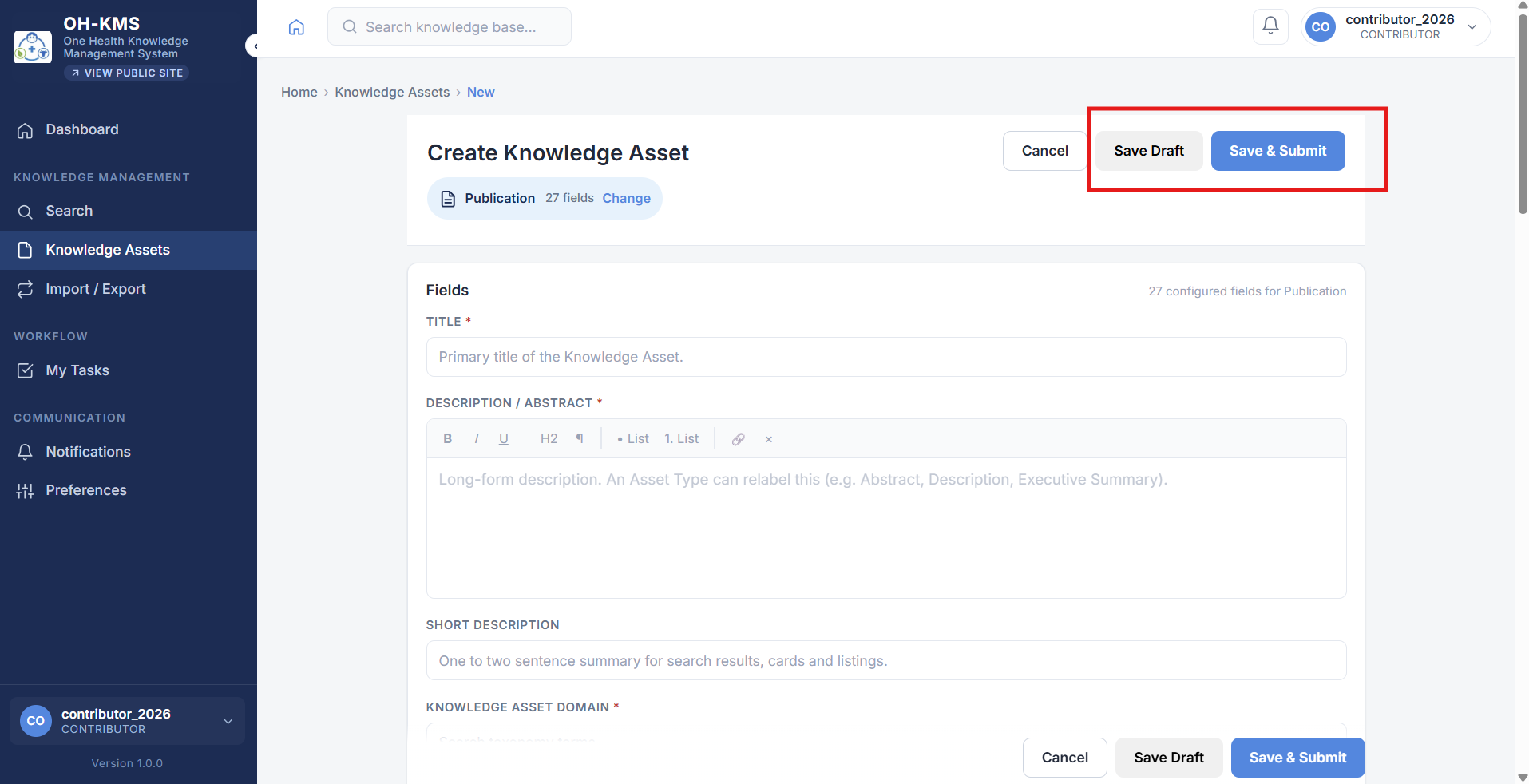
When a knowledge asset is uploaded to the OH-KMS system, the system automatically tags basic metadata. the knowledge contributor adds title, abstract, keywords, themes (Food, Water, Energy, Health, One Health, etc.), format, and permissions. see the figure below
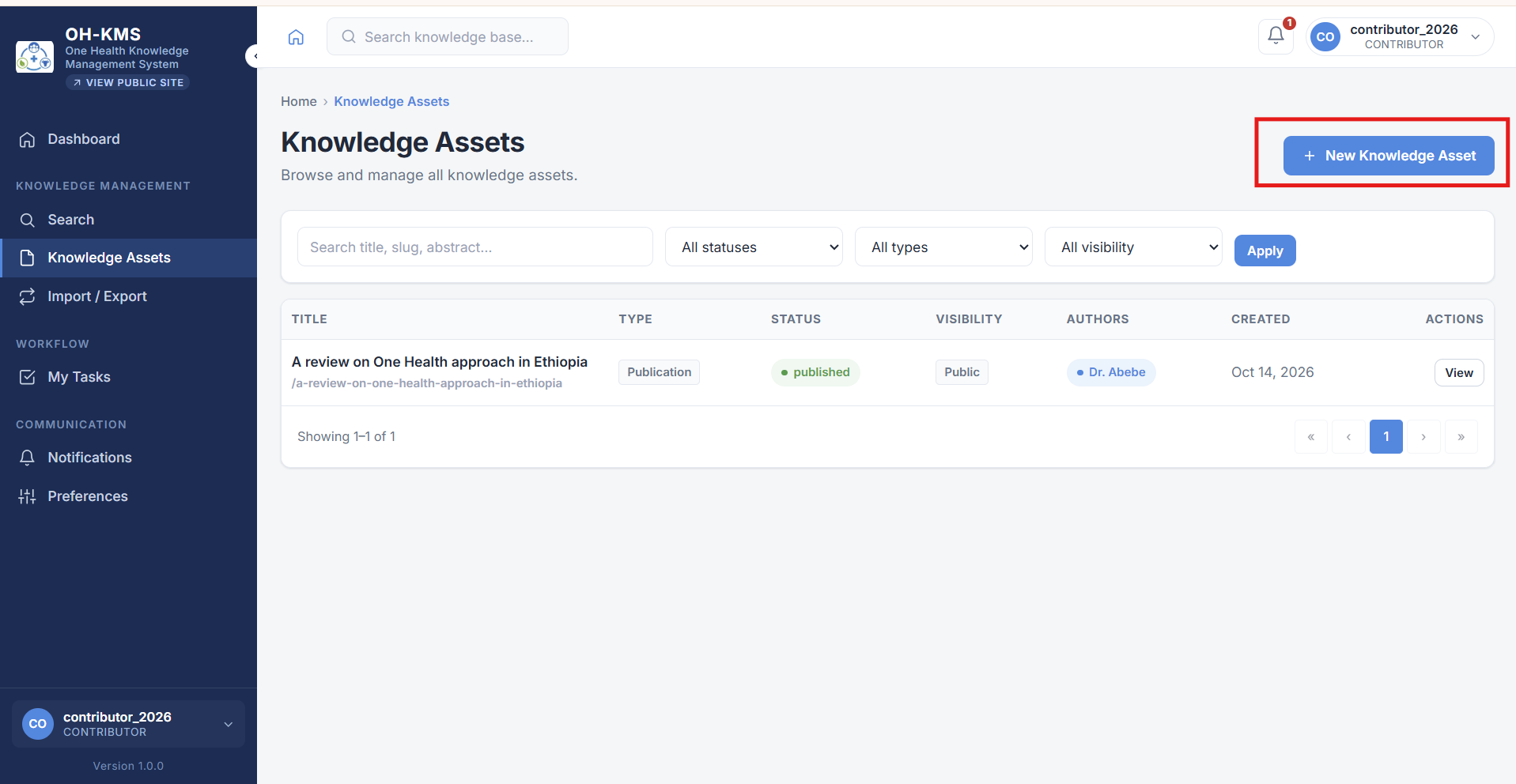
Start by clicking on the + New Knowledge Asset button as shown on the figure.
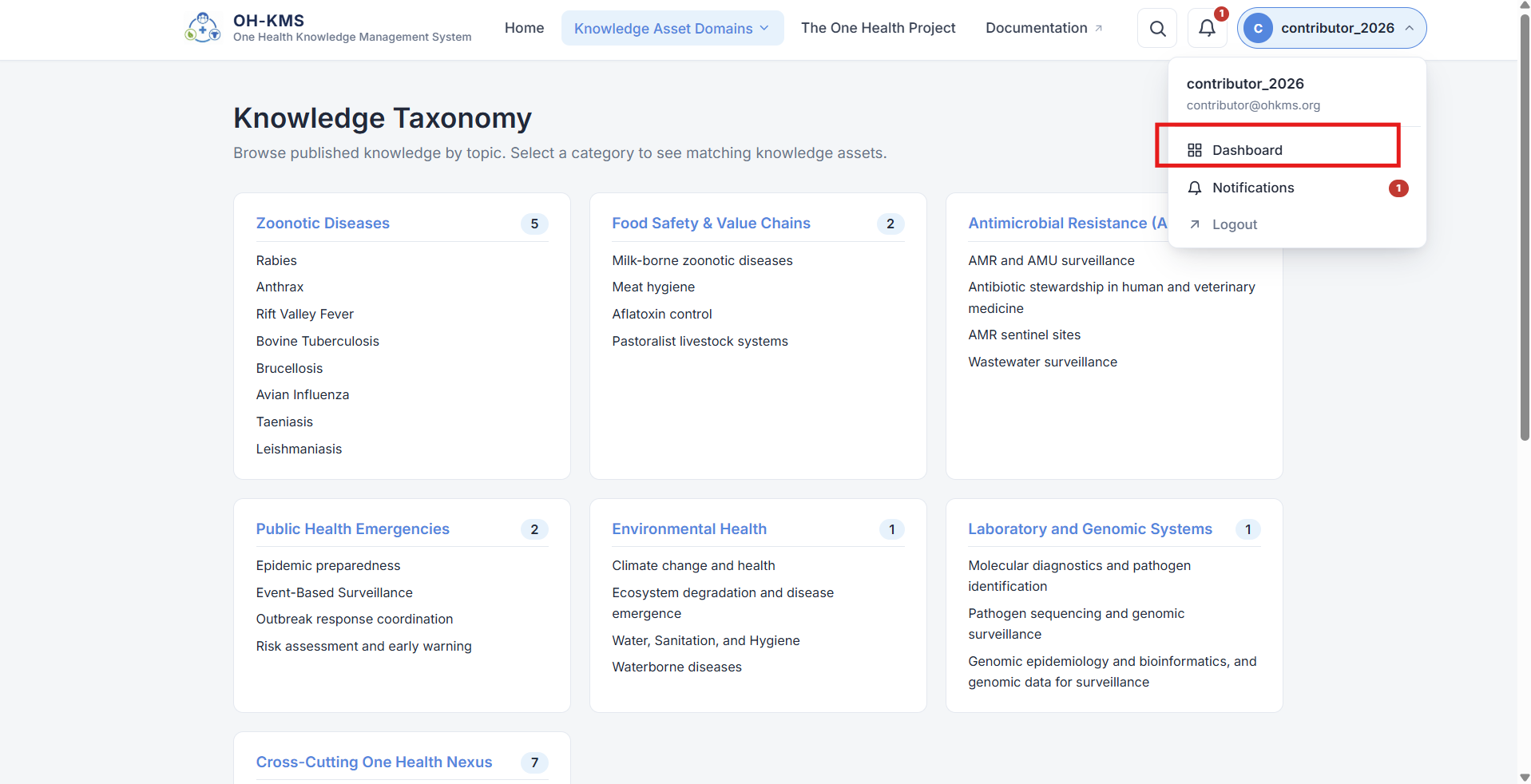
If you do not see the contributor Dashboard, you can click on your profile button and click on Dashboard
Click on the + New Knowledge Asset button as shown on the figure.
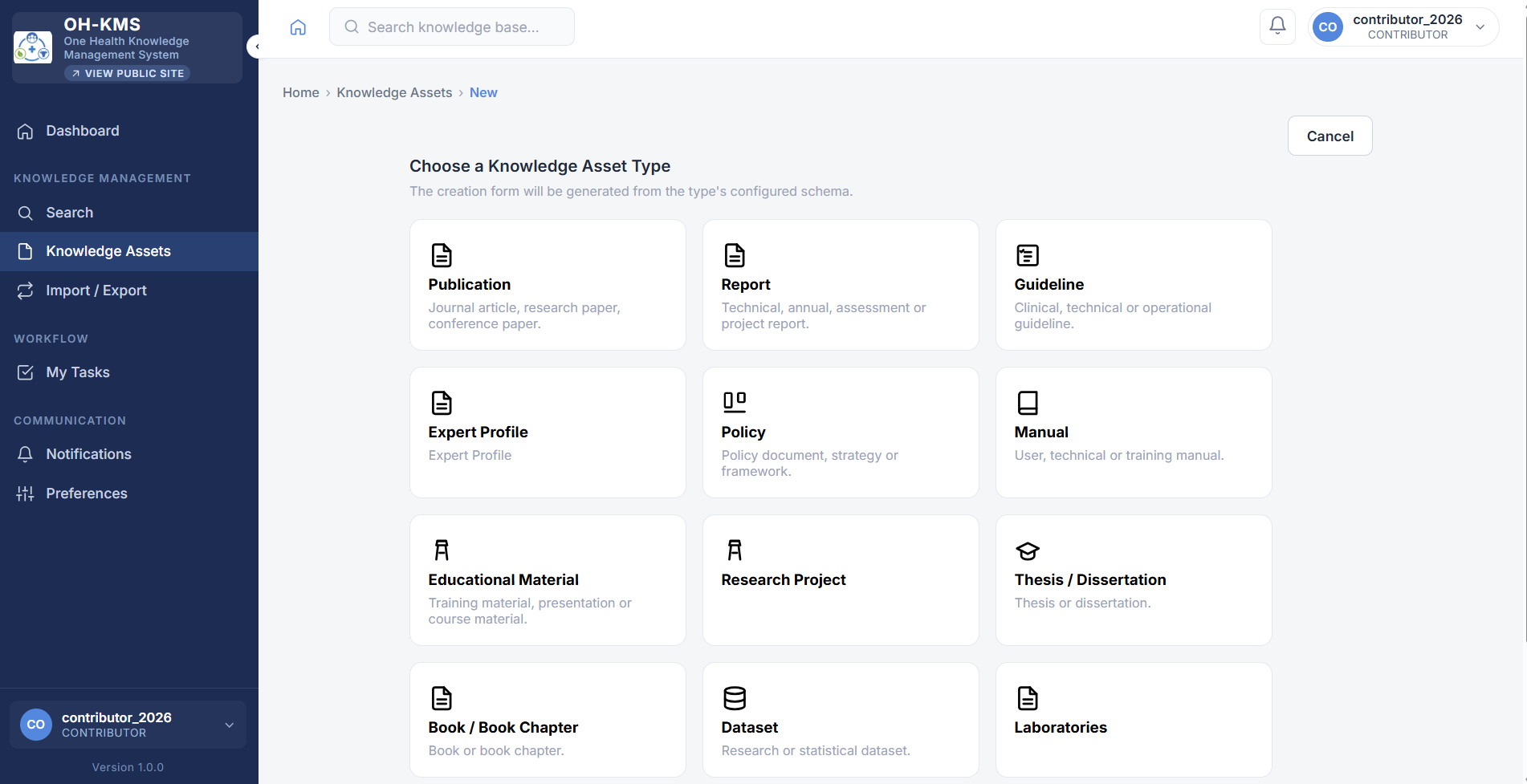
Select the type of Knowledge Asset from the list
Once the type of knowledge Asset to be contributed is selected, add the metadata for the selected KA such as title, abstract, keywords, themes (Food, Water, Energy, Health, One Health, etc.), format, and permissions. See figure below
Uploading Knowledge Asset
Once the metadata for the new knowledge asset is filled out in the new knowkledge asset page, you need to upload the knowledge asset by clicking on the Choose file button and selecting the file you want to upload from your computer.
Save Draft or Submit for Review
Once you added the metadata and uploaded the knowledge asset, you can save the submission as draft for future editing or Save and Submit for review.